 In-store promos
In-store promotions
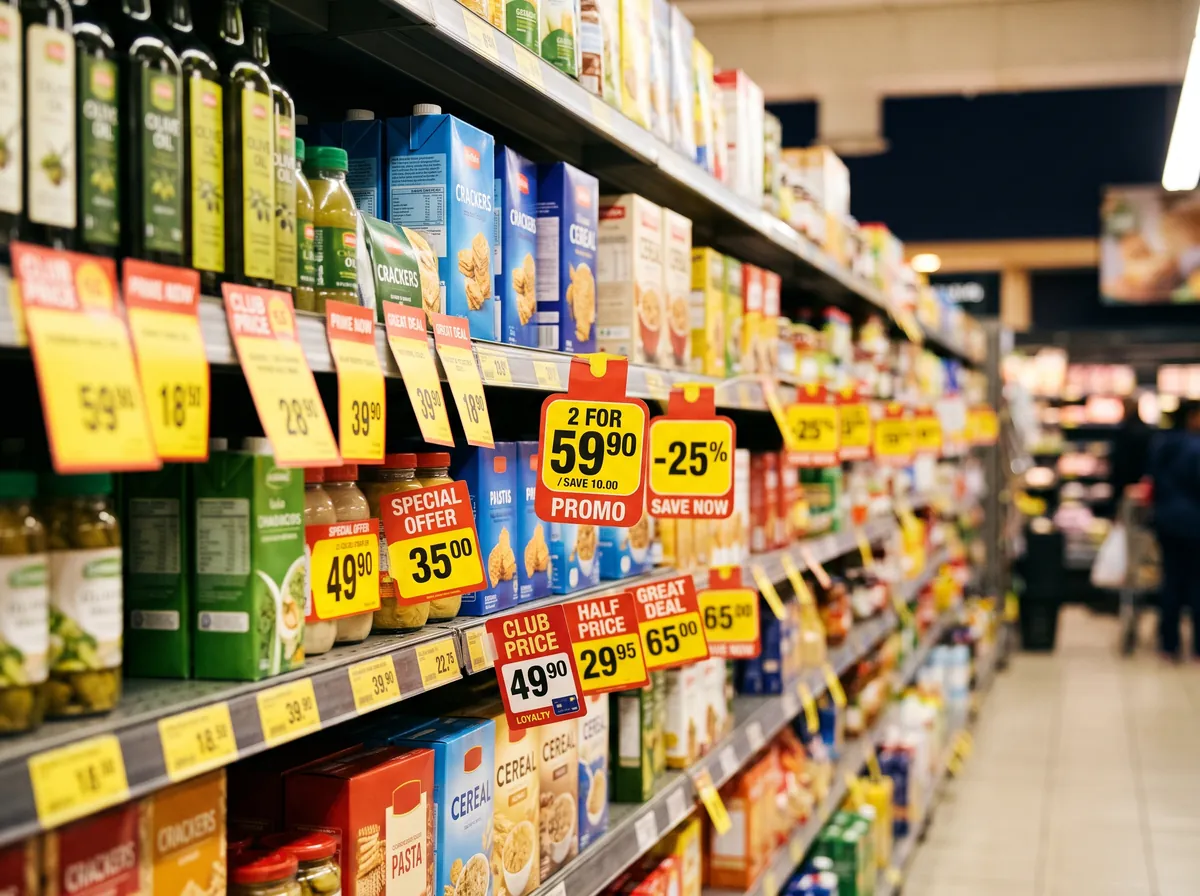
Discounts, multi-buy offers and loyalty-card prices that chains print on shelf tags but never publish online.
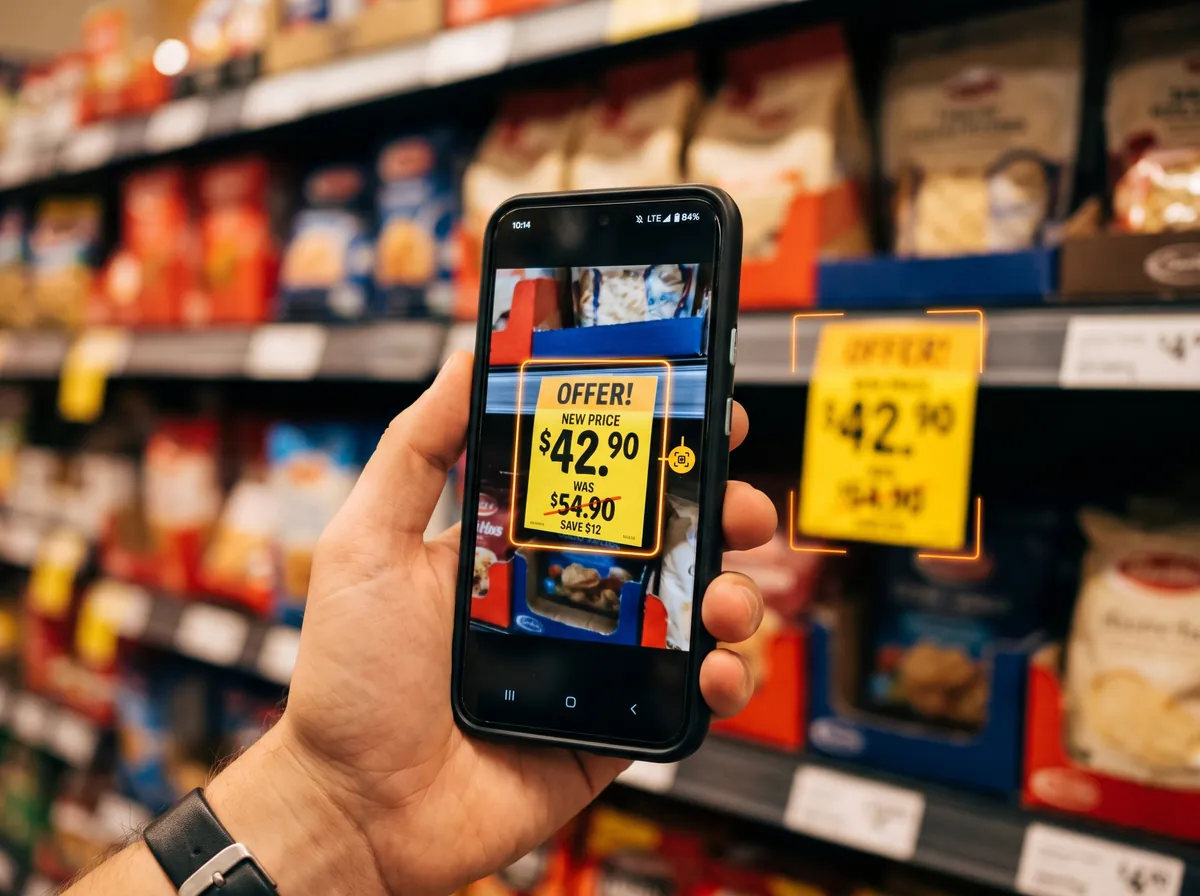
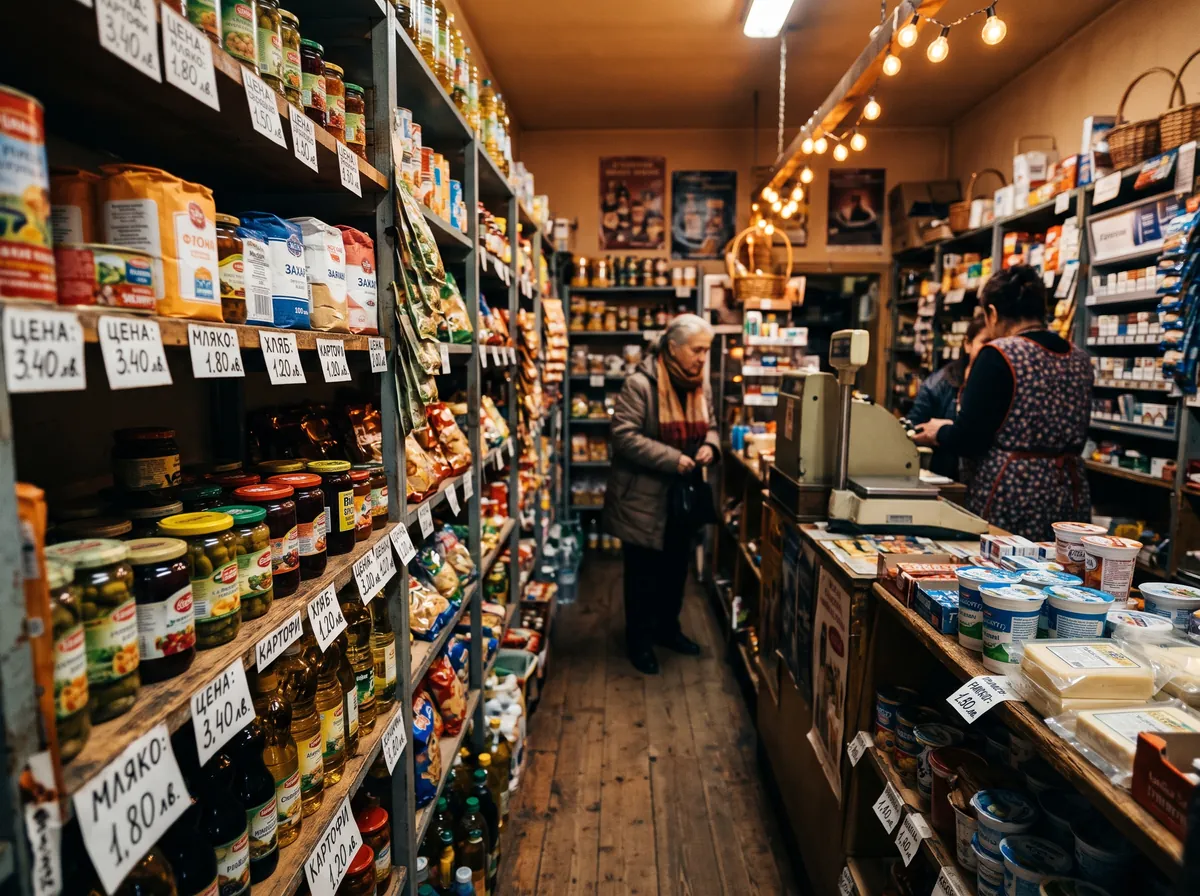
Shelf price monitoring means collecting prices straight from the price tags in physical stores. Your staff photograph price tags in the Costless app; the system reads the product name, price, promotion and its validity dates, matches the tag to a product and shows the new price in Price Insights next to yours.
How we count — data collection methodology →
Online monitoring sees only what a chain publishes on its website. The shelf tag is the price the shopper sees at the moment of choice.
In-store promosDiscounts, multi-buy offers and loyalty-card prices that chains print on shelf tags but never publish online.
 One specific store
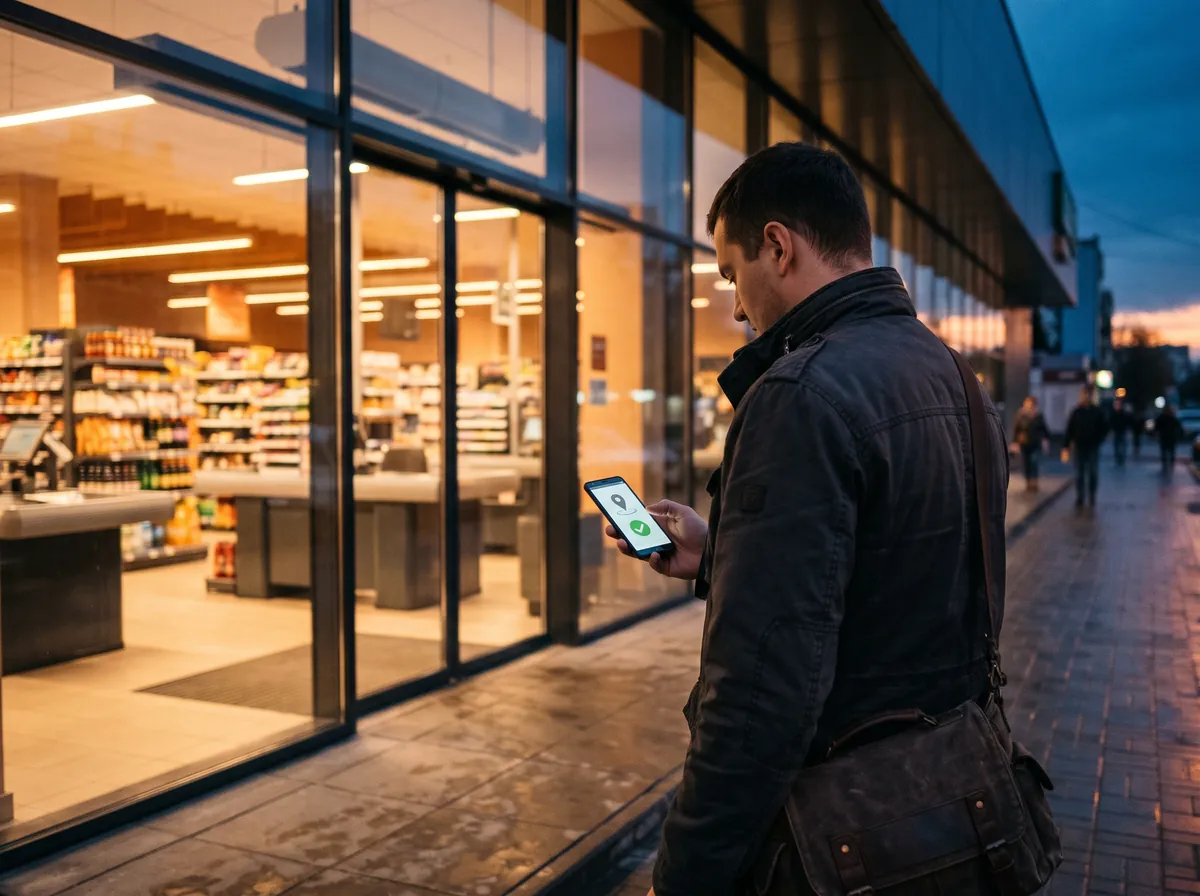
Prices can differ between cities and even between neighbouring streets. A photo taken after check-in shows the price in that exact store.
 No website
Local chains, discounters and convenience stores with no online catalogue — the shelf is the only place to read their prices.
All your staff need to do is take photos; the system does the rest.
A merchandiser, sales rep or auditor opens the app and sees the stores in their campaign, sorted by distance.
The app checks GPS: within the store radius (300 m by default, set per campaign) check-in takes one tap. Outside the zone it needs a reason and is flagged separately. After check-in, every photo is tied to that store.
On site, the app shows what to collect: the manager's note, the collection date and the product categories.
Shoot with the on-screen button or the volume key. For long shelves there is an auto-scanner: it finds a price tag, takes the photo, reads the barcode and skips tags it has already captured.
Photos upload while the agent keeps working. No signal? They wait in a queue on the phone and go as soon as the network is back.
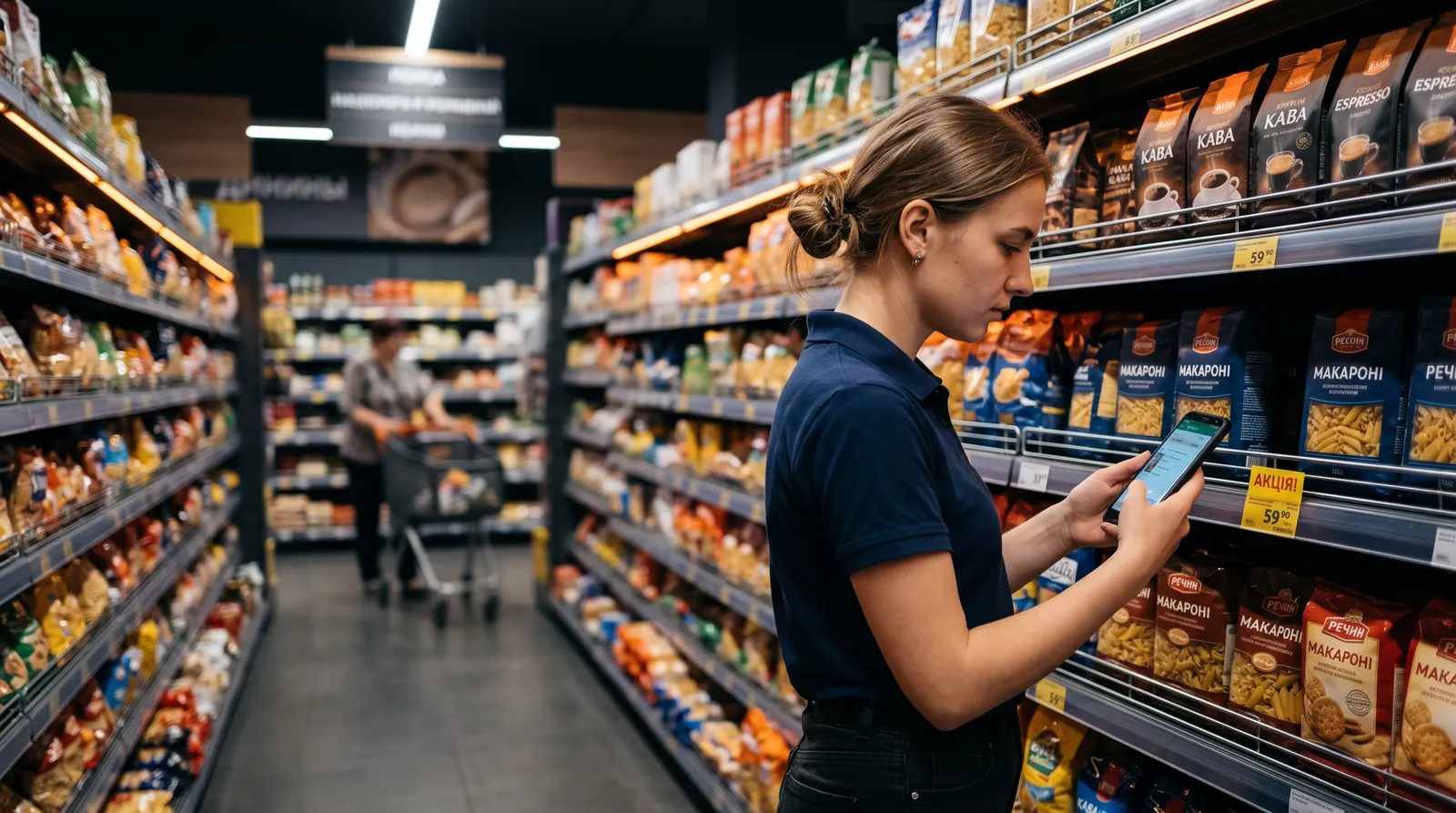
The server finds the price tag in the photo, reads the name, price, loyalty-card price, promotion and validity dates, and matches the tag to a catalogue product — by barcode, chain article number or name. Uncertain matches are checked by a person. If a tag could not be read, the app asks the agent to reshoot it while they are still in the store.
Within an hour of upload, the new price appears in Price Insights next to your price, in the product status and as a new point on the price-history chart.
On the shelf one tag often covers a whole line: several flavours, colours or kinds at one price. Costless does not merge them into one product.

Shelf data doesn't live in a separate spreadsheet: price tags become one more source in Price Insights, alongside prices from chain websites, receipts and flyers.
Website prices give breadth of coverage; shelf prices give accuracy in a specific store. Costless brings both sources together on one product.
We collect the largest Ukrainian chains from their websites every day. Add the shelf where online prices are missing or differ from in-store prices.
| What each source can see | Prices from chain websites | Shelf price tags |
|---|---|---|
| In-store-only promotions | Not visible | Visible on the tags |
| Price in a specific store | The price the chain shows online | The price of that exact store |
| Chains without an online shop | Not covered | Covered |
| Breadth of range | The chain's online catalogue | The categories you choose for the campaign |
| Proof | The web page at collection time | Price-tag photo, GPS check-in and time |
Tell us which chains, cities and categories matter to you.
Fill in the briefIt is collecting prices directly from price tags in physical stores. With Costless, staff photograph price tags in a mobile app, and the system reads the price, promotion and validity dates, matches the tag to a product and shows the result in Price Insights.
Your own people: merchandisers, sales reps, auditors — the staff who visit stores anyway. They need an Android smartphone with the Costless app; you invite them to the campaign yourself.
Before shooting, the agent checks in and the app verifies GPS. Inside the store zone check-in is automatic; outside it requires a reason, and such check-ins are flagged separately in the collection statistics. Photos are taken in the app, not picked from the gallery, so every price is tied to a store, a person and a time.
The product name, price, loyalty-card price, promo price and promotion dates, plus the barcode or chain article number when they are printed on the tag.
By barcode first when the tag shows one, then by the chain article number, then by name and pack size. Uncertain matches do not go into reports automatically: a person checks them.
Photos stay in a queue on the phone and upload in the background as soon as the network is back. The agent does not need to repeat anything.
Yes. Price tags are one of Costless's four sources, together with chain websites, receipts and flyers. One Price Insights report shows prices from every source for the same product.
Within an hour of the photo being uploaded. The server processes new photos every minute, and Price Insights reports refresh every hour.
If the tag names several flavours, colours or kinds, each variant becomes a separate record at the same price and is matched to its own product. An "assorted" tag with no variants named is marked separately and is not linked to a random product.
Tell us which chains, cities and categories matter to you, and we'll suggest which prices to collect from websites and which from the shelf.